Faxing Guide

How to Fax From a Computer:
The 2026 Guide

Four ways to fax from a computer — no fax machine required. We cover the fastest method (60 seconds, no account), subscription services, Windows Fax and Scan, and printer-based faxing.

Send a Fax Online →

No account to setup. No subscription to pay.

⚡ Quick Answer

The fastest way to send a fax from your computer: go to QuickFax.com, upload your document (PDF, Word, or image), enter the fax number, and pay $1.50/page. No account, no phone line, no subscription. Done in under 60 seconds.

Works on Mac, Windows, Chromebook — any browser. If you need step-by-step instructions for Windows Fax and Scan or printer-based faxing, scroll down to Methods 3 and 4.

Before You Start

What You Need to Fax From a Computer

The good news: you don't need a fax machine, a phone line, or any special hardware to fax from your laptop or computer today. Here's what each approach actually requires.

⚡ Online fax (QuickFax)
  • Internet connection
  • Your document (PDF, Word, or image)
  • Recipient's fax number
  • A debit or credit card
Subscription service
  • Internet connection
  • Account (email + password)
  • Credit card for monthly billing
  • Your document file
Windows Fax and Scan
  • Windows 10 or 11
  • Traditional landline or compatible fax modem
  • Feature enabled in Control Panel
  • Printer/fax driver installed
Printer fax
  • Fax-capable all-in-one printer
  • Traditional landline telephone service
  • Phone cord from wall jack to printer
  • Initial setup through printer menu

Most modern approaches accept the same file types: PDF, .doc, .docx, .jpg, .png, .tiff — up to 20MB in size. You can fax a PDF from your computer directly without printing or converting anything.

Method 01 · Fastest

QuickFax — No Account, No Subscription, 60 Seconds

QuickFax is built for people who need to send one fax from their computer without creating an account, paying for a subscription, or going through any setup. No email address, no password, no personal information beyond the payment.

  1. 1
    Go to QuickFax.com

    No app to install. Open the page in any browser — Chrome, Safari, Firefox, Edge. Works on Mac, Windows, or Chromebook without any installation.QuickFax.com homepage in a browser

  2. 2
    Upload your document and enter the fax number

    Accepted formats: PDF, Word (.doc/.docx), JPG, PNG, TIFF, HEIC — up to 20MB. Upload multiple files at once and QuickFax combines them into a single fax automatically.QuickFax upload documents interface

  3. 3
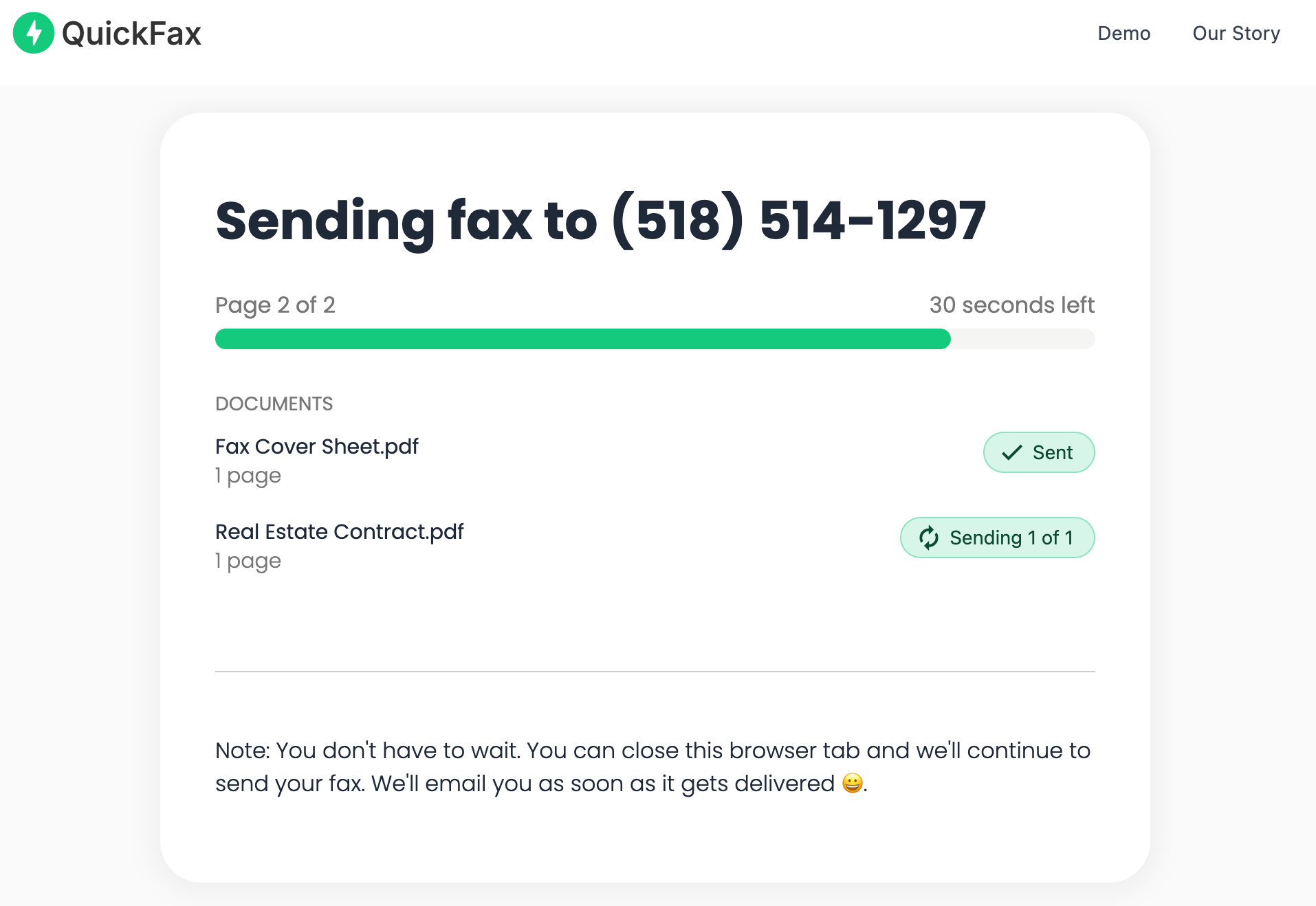
    Pay $1.50/page and send — then watch it deliver

    A live status page shows exactly when your fax is transmitted and confirmed. You'll also get an email confirmation with proof of delivery — important for IRS submissions, court filings, or medical records.QuickFax live fax sending status page

Secure by default

Files are encrypted immediately on upload using 256-bit AES encryption and automatically deleted after delivery. Your document isn't stored on a server after it's sent.

Cost comparison: QuickFax vs. a subscription

⚡ QuickFax
$1.50
per page · no account · no subscription
5 pages twice a year: $15 total
$20/mo subscription
$240
per year — even months you don't fax
Same usage: $240 vs. $15

If you fax a handful of times a year, a pay-per-fax service costs a fraction of any subscription. The math only reverses if you're sending hundreds of pages a month.

Ready to send?

Fax from your computer right now — no account, no subscription.
Send a Fax Online →
Method 02 · High Volume

Subscription Online Fax Services

Services like Dropbox Fax (formerly HelloFax), eFax, RingCentral Fax, and Fax.Plus let you send and receive faxes through a web browser, mobile app, or email — without hardware or phone lines.

What they include

  • A dedicated fax number for receiving faxes
  • Cloud storage integration (Google Drive, Dropbox)
  • Team access, fax broadcasting, API features
  • Send and receive from mobile or desktop

What they cost and require

  • $10–$30/month — charged whether you fax or not
  • Account setup: email, password, credit card, plan selection
  • “Free trials” typically limited to 5–10 pages, then auto-renew
  • Cancellation is often deliberately difficult
The subscription trap

Many users sign up to send one fax, forget to cancel, and find themselves paying $20/month for a service they used once. That's $240/year for something that would cost $3–$15 on a fax without subscription service. If you need to fax regularly — multiple times a week — a subscription makes sense. For anyone else, it doesn't.

Subscription services are the right call for businesses that fax frequently, need a dedicated inbound fax number, or require team collaboration and software integrations. For individuals sending occasional faxes, they're expensive overkill.

Method 03 · Built-In

Windows Fax and Scan

Windows Fax and Scan is a free built-in feature on Windows 10 and 11 — but it's off by default and requires setup before it works. If you're looking for a Windows Fax and Scan alternative that skips all the configuration, QuickFax works immediately in any browser with no setup.

How to enable Windows Fax and Scan

  1. 1
    Enable the feature

    Go to Control Panel → Programs → Turn Windows features on or off. Check the box for Print and Document Services → Windows Fax and Scan. Click OK and restart if prompted.

  2. 2
    Connect a fax modem or configure a fax service provider

    Windows Fax requires either a traditional phone landline + fax modem(increasingly rare) or configuration with a compatible online fax service provider account. Without one of these, the feature won't transmit faxes.

  3. 3
    Configure your fax settings

    Open Windows Fax and Scan from the Start menu. Set up your fax account, dialing rules, and preferences. This may take 20–40 minutes the first time.

  4. 4
    Send a fax from Windows or Office

    Once configured, you can send from Windows Fax and Scan directly, or from any Office application (Word, Excel) via File → Print → Windows Fax. A wizard walks you through adding recipient numbers and a cover page.

Is it worth setting up?

If you already have a compatible phone line and fax modem and plan to fax regularly from Windows — yes. If you need to send fax from Windows 10 or Windows 11 right now and don't have that hardware, setup time will likely exceed 30 minutes. An online service gets your fax sent in 60 seconds.

Method 04 · Hardware

Your Printer's Built-In Fax Function

Many HP, Canon, Epson, and Brother all-in-one printers include fax capability — but using it requires hardware most people no longer have.

What you need

  • A fax-capable all-in-one printer (check your printer model's specs)
  • A traditional landline phone service (not VoIP in most cases)
  • A phone cord running from the wall jack to the printer's LINE port
  • Initial fax configuration through the printer's control panel menu

How to send

Load your document in the scanner or automatic document feeder. Dial the recipient's fax number on the printer's control panel. Press Send. The printer transmits the fax over the phone line — just like a traditional fax machine.

The catch

Most people searching “how to fax from a computer” don't have a landline or a fax-capable printer. And even if you do, you still need to be physically at the printer with a paper document — which defeats the convenience of computer-based faxing. For anything that exists as a digital file on your computer, uploading to an online fax service is faster.

Making the Right Choice

Which Method Is Right for Your Situation?

You need to fax once, or just occasionally
Use QuickFax. No account, no subscription. Send fax online in 60 seconds, pay $1.50/page, get email confirmation. Done.
You're facing an urgent deadline — court filing, IRS, hospital
Use QuickFax. Skip Windows Fax setup and printer troubleshooting entirely. A live status page and delivery confirmation give you proof in minutes, not hours.
You fax multiple times a week and need a dedicated fax number
A subscription service (Dropbox Fax, RingCentral) makes sense. The monthly cost is justified by volume and you need inbound faxing capability.
You already have Windows Fax configured and fax from Office regularly
Keep using it — you've absorbed the setup cost. Just know it lacks mobile access and modern features if those matter to you.
You own a fax-capable printer with a landline and fax from one fixed location
Using your printer's fax function works. But consider that online faxing is more flexible — no phone line maintenance, works from anywhere.

No setup needed

The best way to fax from a computer for most people — open a browser, upload, send.
Send a Fax Online →

Kind Words from QuickFax Customers

Fast, secure, the price is right! This site is a blessing for those who rarely have to send a fax.

Stephen from California

By far the easiest and most convenient internet fax service I have ever used. Highly recommend.

John from New Mexico

I loved that it doesn't require a subscription or a free trial. I just got in and faxed what I needed to.

Tom from Mississippi

This was my first time sending a fax this way, and it was very easy. I will definitely use this again. Was much easier then going to a store.

Elizabeth from Arizona

Trusted by thousands to fax IRS, SSA, legal, medical, government documents, and more.

Send a Fax Online →

No subscription. $1.50/page.

Common Questions

Frequently Asked Questions

Do I need a phone line to fax from my computer?

No. Online fax services like QuickFax send faxes over the internet — no phone line or fax modem required. You can fax without a phone line from any device with a browser. Only Windows Fax and Scan (traditional setup) and printer-based methods need a physical landline.

Can I fax a PDF from my computer?

Yes. You can send a PDF as a fax directly from QuickFax — just upload the file, enter the fax number, and send. No conversion, no printing. QuickFax also accepts Word documents and image files up to 20MB, so you can fax whatever format you already have.

Can I fax from a Mac?

Yes. Faxing from a Macworks through QuickFax's browser interface — Safari, Chrome, or Firefox on any macOS version. There's no Mac-native fax app the way Windows has Fax and Scan, so an online service is the easiest route. No download or installation required.

Can I fax multiple documents at once?

Yes. Upload multiple files (PDFs, Word docs, images) in one go and QuickFax combines them into a single fax transmission. You don't need to merge files beforehand — just select all the files you want to include and upload them together.

How do I know if my fax was delivered?

QuickFax shows a live status page during transmission and sends an email confirmation with a delivery report once it's received. Save that email — it's timestamped proof of delivery, which matters when faxing to courts, the IRS, insurance companies, or healthcare providers.

Is faxing from a computer secure?

QuickFax encrypts your files immediately on upload using 256-bit AES encryption and deletes them automatically after the fax is delivered or fails. This is more secure than traditional fax machines, where printed pages sit in output trays. Transmissions also use TLS 1.2 encryption in transit.

Do I need to include a cover page?

Cover pages are optional for most faxes. QuickFax lets you add a cover page as one of your documents. Many government agencies, hospitals, and legal offices work fine without one — but check with the recipient if you're unsure.

What if the fax line is busy?

QuickFax automatically retries busy numbers several times before reporting failure. You'll get a notification if it ultimately fails and can resend. This is more reliable than traditional fax machines, where you'd need to manually redial and start over.

Ready to Send Your Fax?

Just enter the fax number, upload your documents, and send.

Send a Fax Online →
No account needed No subscription $1.50/page Supports photos & PDFs Delivery confirmation Files deleted after faxing
© 2026 QuickFax LLC